Google Sync vs Blackberry Mail
Posted by Heru Ronaldo
on
Saturday, March 27, 2010
in
Ilmu Berharga
Kalo dibanding secara head to head seh kayaknya memang menang BB...menang di ongkosnya...xixixiixixi....mahaaall.....!!
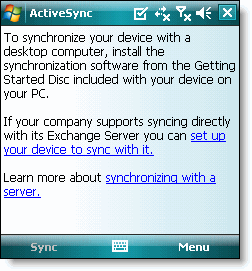
2. Click Set up your device to sync with it.
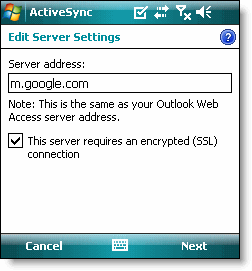
3. Enter m.google.com as the server address.
4. Ensure that the SSL option is selected.
5. Click Next.
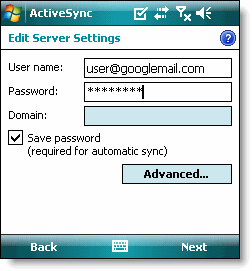
6. Enter your full Google Account email address as the User name.
7. Enter your Google Account password as the Password.
8. Leave the Domain field empty. If your device requires you to enter a domain name, enter google.
9. Click Next.
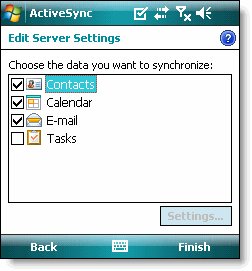
10. Check Contacts, Calendar, or Email, depending on which you'd like to sync. (Tasks is not supported and will lead to an error if checked.)
11. Click Finish.
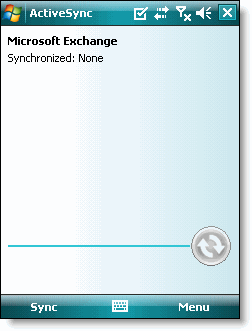
12. Press the Sync softkey on the left to synchronize.
|

Sejauh ini seh ga ada masalah make Google Sync..kebetulan email kantor masuk ke dalam domail Gmail dengan custom domain..jadi ga ada beda sama Gmail umumnya...so ngapain seh mesti bayar segala...??
Emang seh cuman bisa 1 email 1 sync...tapi emang 3 email itu mesti Realtime semua...??? beuuuh...mending kalo semuanya penting.....
Lagian Phonebook dan Schedule bisa di simpen di servernya Gmail semua...so kalo memang apes-apesnya itu hape ilang...Phonebook selamat...
Google Sync: Setting Up Your Windows Mobile Phone for Google Sync
To set up Google Sync on your Windows Mobile device, please follow the steps below.
Important Note: Make sure that you have backed up any Contacts and Calendars from your phone to your computer before proceeding.
Getting Started
1. Open the Active Sync application on your device's home screen.2. Click Set up your device to sync with it.
3. Enter m.google.com as the server address.
4. Ensure that the SSL option is selected.
6. Enter your full Google Account email address as the User name.
7. Enter your Google Account password as the Password.
8. Leave the Domain field empty. If your device requires you to enter a domain name, enter google.
9. Click Next.
10. Check Contacts, Calendar, or Email, depending on which you'd like to sync. (Tasks is not supported and will lead to an error if checked.)
11. Click Finish.
12. Press the Sync softkey on the left to synchronize.
You've now set up Google Sync for your Windows Mobile device.
|
